How to move from Apple Notes to Amber Notes

I built Amber Notes to feel like Apple Notes, so moving should be easy too. On your Mac, you bring every note over in one go, folders and pins included. Nothing in Apple Notes changes, so you can take your time.
Before you start
- A Mac with macOS 26 or later, and your notes in the Notes app on it.
- Amber Notes, free from the download page. Open it and sign in, so your notes sync.
Import everything on your Mac
- In Amber Notes, choose File, then Import from Apple Notes.
- The first time, macOS asks whether Amber Notes may control Notes. Choose Allow. That's how it reads your notes. If you chose Don't Allow by mistake, turn it on in System Settings, Privacy & Security, Automation.
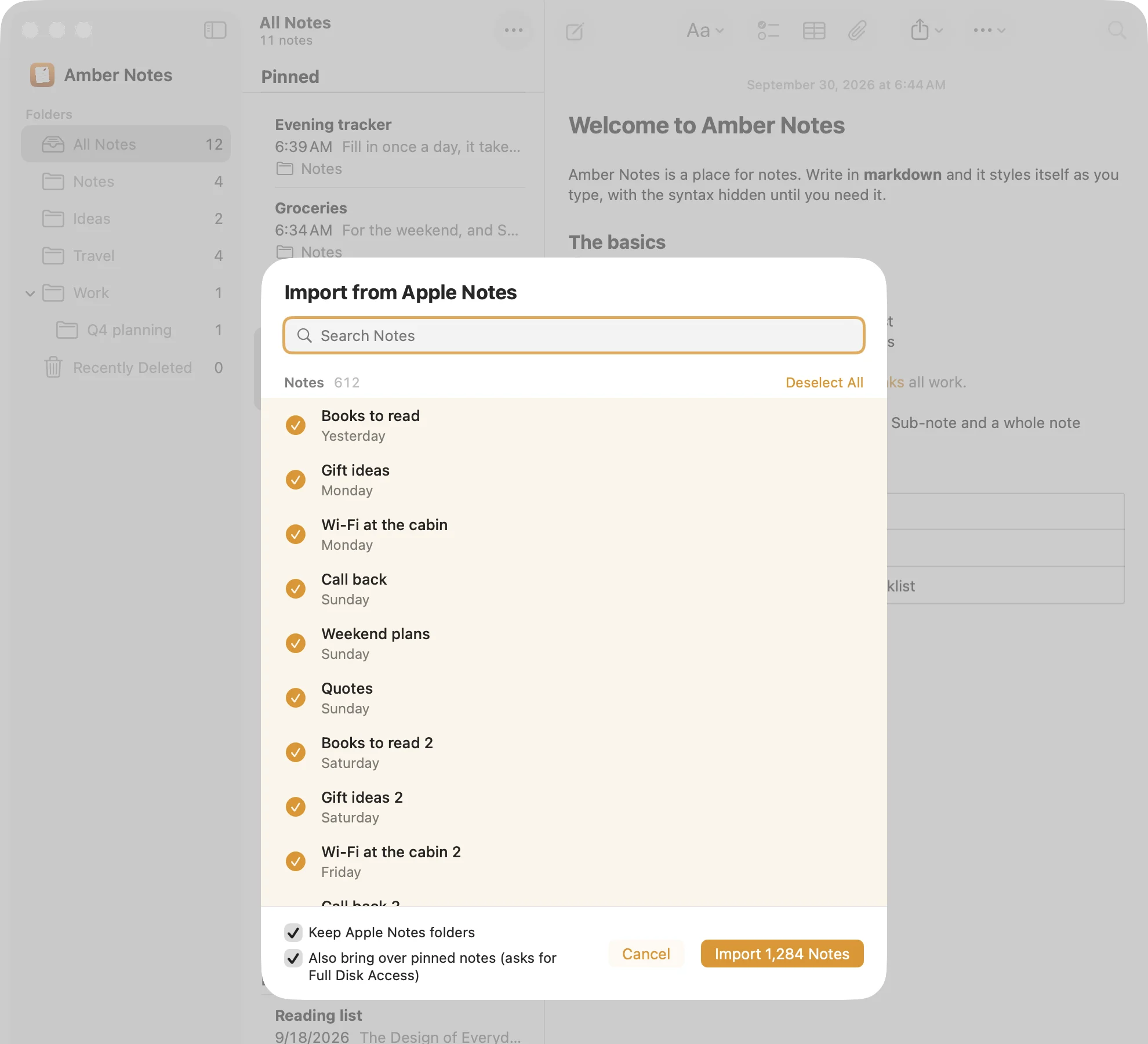
- Pick everything, or just the notes you want. You can search the list. Notes with the same title as one you already have are marked Already imported.
- Keep Apple Notes folders is on, so your folders come along. Turn it off to put everything in one list.
- To keep your pinned notes pinned, turn on Also bring over pinned notes. It asks for Full Disk Access, because Apple Notes keeps pins where only apps with that permission can read them. Everything else imports without it.
- Choose Import. You can watch it count through your notes.
What comes along
- Your notes, in their folders, with their dates.
- Text formatting, links, lists, checklists and tables.
- Pins, if you turned that option on.
Images and attachments stay in Apple Notes, and so do locked notes, which the import can't read. Your notes in Apple Notes stay exactly as they were.
On your iPhone
The iPhone app is coming soon to the App Store. Once it's out, sign in with the same account and everything you imported on your Mac is there. To bring over a single note from your iPhone, open it in Apple Notes, tap Share and choose Amber Notes.
After the move
- If you know Apple Notes, you already know Amber Notes: folders, a note list by date, pins, search and Recently Deleted work the same way.
- Your notes are stored as markdown underneath, formatted on screen.
- Want ChatGPT or Claude to use them? Connect ChatGPT or Claude to your notes. For a coding agent, see using your notes from Claude Code and Codex.
- Still deciding? Amber Notes vs Apple Notes covers what each one does better.
Questions
Does importing change or delete anything in Apple Notes?
No. The import only reads Apple Notes. Your notes there stay exactly as they were, so you can keep using both.
Can I import again later without getting duplicates?
Yes. Notes you already imported are marked Already imported in the list, and a note that hasn't changed since is skipped.
Can I export Apple Notes as markdown instead?
On macOS 26, Apple Notes can export a note as markdown from the File menu, one note at a time. Amber Notes imports everything you pick in one go, and keeps your notes as markdown from then on.
Checked against the app on .


