How to export Apple Notes to Markdown

Apple Notes can finally export Markdown on its own, which is good news if you want your notes in Obsidian, in a git repository or in a chat with ChatGPT. Here's how it works on a Mac and an iPhone, what to check in the file, and what to use when you want every note, not just one.
The short answer
On macOS 26 and iOS 26 or later, Apple Notes exports a note as a Markdown file: File, Export as, Markdown on a Mac, and Share, Export as Markdown on iPhone. It works one note at a time. On older versions, and for a whole library, you need an exporter.
Export a note on a Mac
- Open Notes and click the note you want to export.
- Choose File, Export as, Markdown. In macOS 27, the menu is File, Export To, then Markdown.
- Type a name for the file if you want another one, and pick where to save it.
- Click Save.
To copy only part of a note, macOS 27 and iOS 27 add Copy as Markdown: select the text, then choose Edit, Copy as Markdown on a Mac, or Copy as Markdown in the edit menu on iPhone. It works the other way too: paste Markdown into a note and it turns into headings and lists. What else is new in Apple Notes in iOS 27 covers the rest. The Mac steps come from Apple's guide, Import, export, and print notes on Mac.
Export a note on iPhone
- Open the note in Notes.
- Tap the Share button, then tap Export as Markdown. If you don't see it, tap the View More button first.
- Choose where the file goes: Save to Files, AirDrop, Mail or another app.
Apple describes this in Export or print notes on iPhone.
What to check in the file
Apple doesn't list what survives the trip, so export one note that has everything you use, and open the file in a text editor before you move a hundred of them. The things worth a look:
| In your note | What to look for in the Markdown |
|---|---|
| Headings, bold, lists, links | These are what Markdown is for, and should come out as #, **, - and [text](link). |
| Checklists | Whether each item is a - [ ] or - [x] line, with its ticked state kept. |
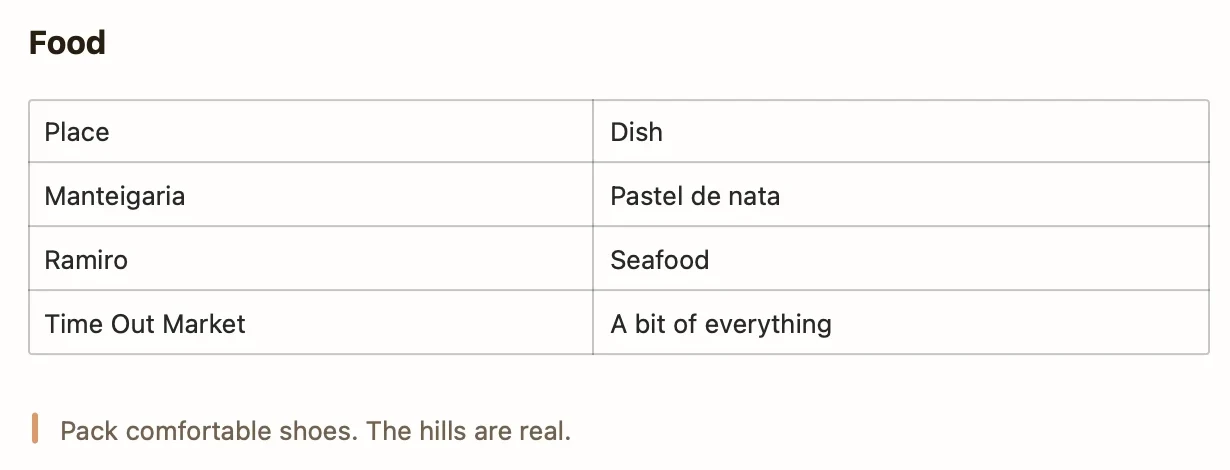
| Tables | Whether you get a pipe table, and whether cells with line breaks survive. |
| Pictures, scans and files | Markdown can only link to them, so check that the files were saved and that the links point at them. |
| Drawings, tags and links to other notes | Apple Notes features with no Markdown equivalent. Expect them to be flattened or dropped. |
| Locked notes | Unlock the note before you export it. |
Export every note at once
Apple's guides only describe exporting the note in front of you. For a folder or a whole library, the usual route is a free exporter that runs on your Mac and reads the Notes app for you:
| What it does | Good to know | |
|---|---|---|
| Apple Notes' own export | One note to one Markdown file, on Mac and iPhone | macOS 26 or iOS 26 and later; nothing to install |
| Apple Notes Exporter | A Mac app that exports every note, in its folders, to Markdown and other formats, with attachments beside each note | Free and open source (GPL); download from GitHub; asks for Full Disk Access |
| notes-exporter | A command-line script that exports your notes to HTML, Markdown, PDF or Word, with images | Free and open source (MIT); needs Python and the Terminal |
Whichever you use, it's a copy. Apple Notes stays as it was, and a note you change tomorrow won't change in the file.
If you're moving somewhere, not making a backup
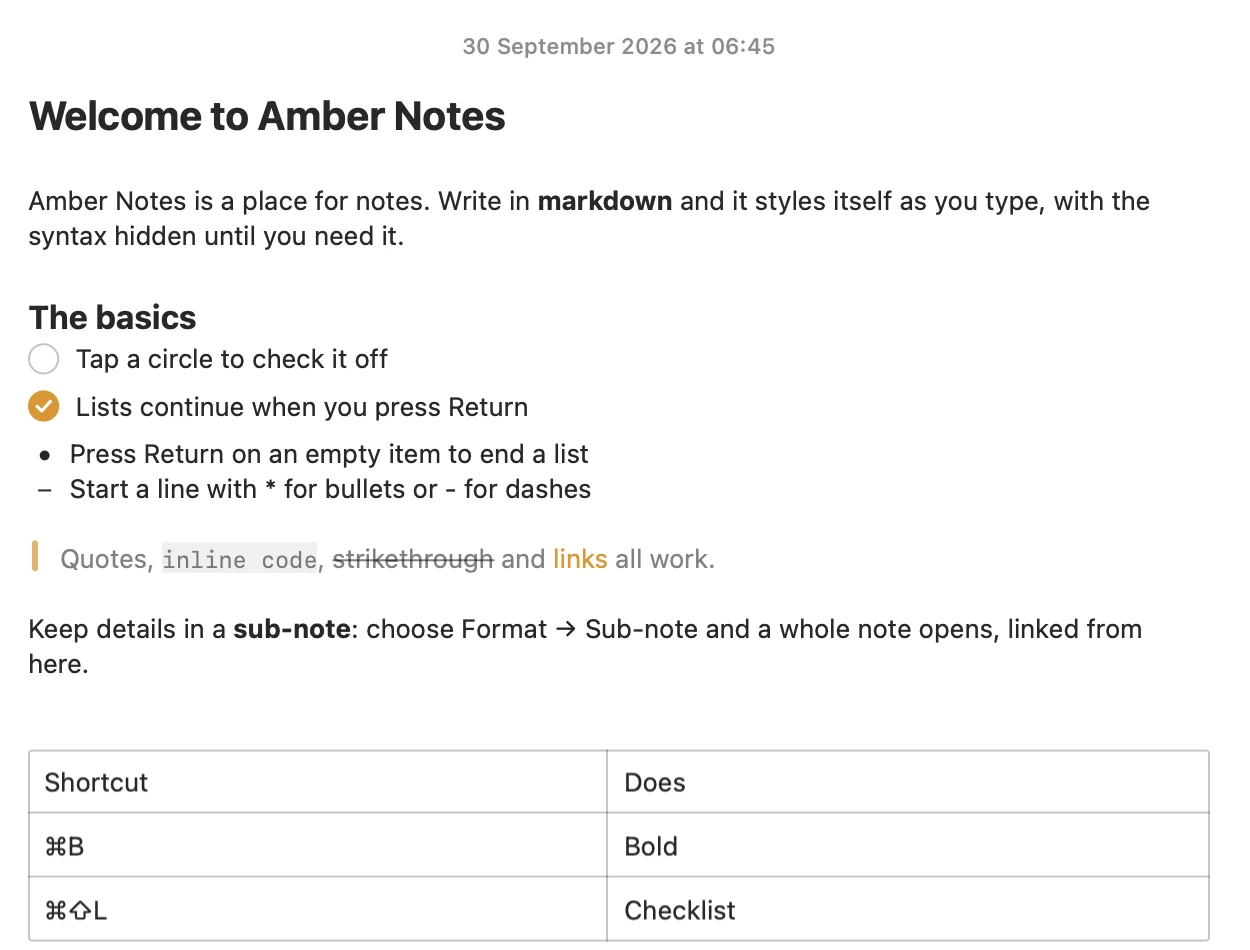
An export is the right tool for a backup or a one-off move into Obsidian or a repository. Apple Notes vs Obsidian covers what you gain and give up there. If what you actually want is Markdown notes that still work like Apple Notes, that's why I made Amber Notes: it looks and works like Apple Notes on iPhone and Mac, and every note is Markdown underneath.
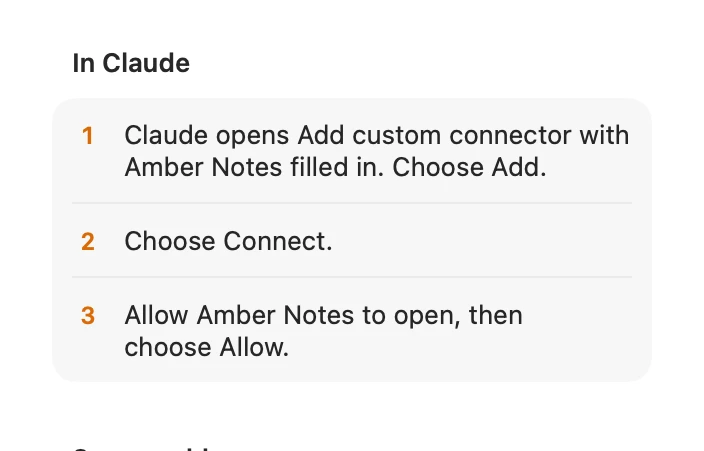
On a Mac, File, Import from Apple Notes brings over the notes you pick in one go, in their folders, with checklists and tables. Be aware of what it leaves behind: images, attachments and locked notes stay in Apple Notes. And once your notes are Markdown in Amber Notes, ChatGPT and Claude can read and edit them directly, with your approval, instead of you pasting files into a chat. Connecting ChatGPT or Claude takes a couple of minutes.
If you're here because you want to script Apple Notes, what exists instead of an Apple Notes API covers AppleScript, Shortcuts (which now has Create Note from Markdown and Append Markdown to Note actions) and their limits.
Questions
Can Apple Notes export to Markdown?
Yes, since macOS 26 and iOS 26. On a Mac, click the note and choose File, Export as, Markdown (in macOS 27 the menu is called Export To). On iPhone, open the note, tap the Share button and tap Export as Markdown. Older versions can't export Markdown on their own.
Can I export all my Apple Notes to Markdown at once?
Not with a documented Apple feature. Apple's guides describe exporting the note you have open. To export a folder or your whole library, use a free exporter on your Mac, such as Apple Notes Exporter or notes-exporter on GitHub.
Does the Markdown export keep images and attachments?
Apple's guide doesn't say what happens to them. Markdown is plain text, so a picture can only come along as a separate file that the text links to. Export one note that has a picture and a table, and open the file before you rely on it.
Can I export a locked note?
Unlock it first. Apple's iPhone guide says a locked note must be unlocked before you export it to Pages, and it doesn't describe a way around that for Markdown.
How do I get Markdown back into Apple Notes?
On a Mac, choose File, Import Markdown, pick one or more files and click Import. In macOS 27 you can also pick a whole folder and keep its folder structure; the new notes land in a folder called Imported Notes.
Checked against the app on .