Tables in Apple Notes: what you can and can't do

Apple Notes tables are deliberately simple. You can add and remove rows and columns, move them around and paste into them. You can't set a column's width, sort, or add up a column, because there are no formulas at all. Here's what they do, with the steps on a Mac, the workarounds that hold up, and when a table belongs somewhere else.
Add a table
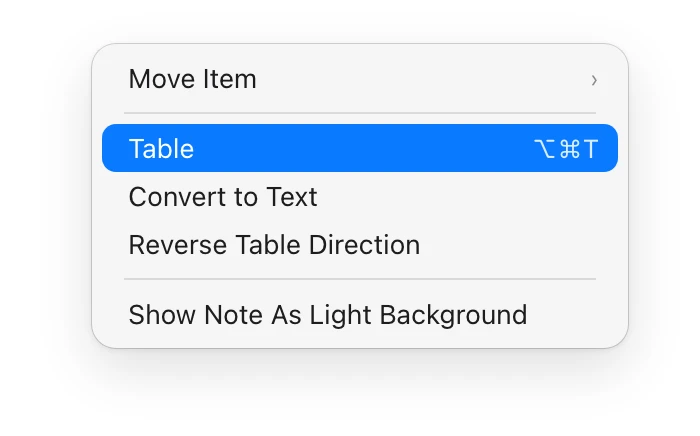
On a Mac, click where the table should go and click the Table button in the toolbar, or choose Format, Table (Option-Command-T). Notes adds an empty table with two rows and two columns. On iPhone, tap the Add Table button while you write.
To turn text you've already written into a table, select the paragraphs first and then click the Table button. To go the other way, click in the table, click the Table Actions button and choose Convert to Text. Apple's steps are in Add a table in Notes on Mac.
Rows and columns
On a Mac:
- Move between cells with Tab or the arrow keys.
- Press Tab or Return in the last cell to add a row at the bottom.
- To add or delete a row or column, click the table, click the handle to the left of the row or above the column, then click its down arrow and choose.
- To move a row or column, select it, then click and hold until it lifts off the table, and drag.
- Selecting a row or column and pressing Delete clears it. If it's already empty, Delete removes it.
On iPhone, tap a cell, then tap the handle above its column or beside its row for the same options: add one before or after, or delete it.
Pasting into a cell drops named styles such as Monostyled and Subheading. You can also copy a whole table out of Safari or Pages and paste it into a note, though Apple warns that some formatting won't come along.
Column width: you can't change it
This is the most common complaint, and there's no setting for it. Notes decides how wide each column is. There's no edge to drag, and neither the Format menu nor Apple's guide has anything for width. What helps:
- Keep headers short. “Qty” leaves more room for the column next to it than “Quantity needed”.
- Keep long text out of the table. Put a short label in the cell and the paragraph under the table.
- Split a wide table into two narrower ones. A table with eight columns is cramped on an iPhone whatever you do.
Sums and formulas: there aren't any
A table in Apple Notes holds text. It can't total a column, count rows or refer to another cell. Notes does have Math Results, which solves a sum as you type it: write 120+45+80= and it offers 245. It also works with names: Rent=1200 and Food=450 on their own lines, then Rent+Food= below them, gives a total that updates when you change either number. Apple documents this for the body of a note, in iCloud notes and notes on your Mac, and says nothing about table cells. The setting is Format, Math Results, with Insert Results, Suggest Results or Off; the steps are in Solve math in Notes on Mac.
So for a budget or a tally, the workable pattern is the table for the items and a line of Math Results under it for the total. If you need real formulas, sorting or charts, the table has outgrown Notes, and Numbers is the place for it.
Getting data in from elsewhere
On macOS 26, Notes gives the Shortcuts app an Add Table to Note action that takes comma-separated values. Export a sheet from Numbers as CSV, pass the text to that action, and the rows arrive as a table in the note you pick.
Getting tables out is less certain. Before you rely on the Markdown export for tables, try it on one note and check the file; how to export Apple Notes to Markdown covers what to look for, and how to back up Apple Notes covers keeping a copy.
When you want a table that does more
Amber Notes, the notes app for iPhone and Mac that I make, keeps tables just as plain to edit, but lets you give a column a type. On a Mac it's Format, Table (Option-Command-T), or the Table button. The handle above a column sets it to Text, Number, Date or Yes/No, and a Yes/No column becomes a tap instead of typing. With a date column, Show Trend draws a number column as a line over time, with its average. It doesn't do sums or formulas either, and you can't set column widths, which fit the text. A table too wide for the window scrolls sideways instead of squeezing every column.
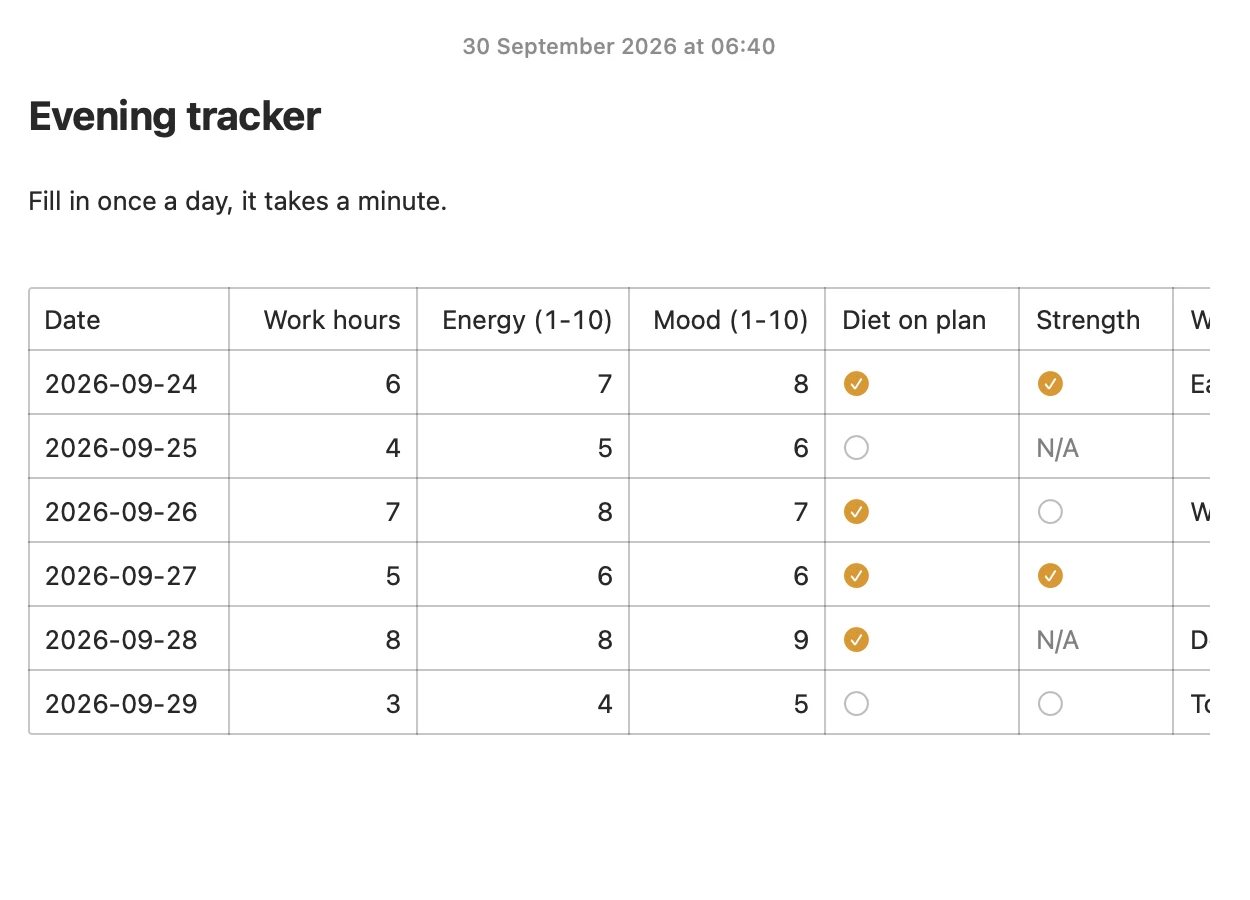
Two things Apple Notes can't do. File, Import Spreadsheet as Table on the Mac turns the first sheet of an Excel file into a table in a new note, with dropdowns as choices and each formula's last value. And ChatGPT or Claude can work with the table: they read its rows and column types, add a row for today, and answer questions such as “what did I spend on food this month?” by doing the sum themselves. The table stays markdown underneath, so any editor can open it.
The iPhone app is coming soon to the App Store, with the same tables. Moving from Apple Notes brings your existing tables across in one import on your Mac, and Amber Notes vs Apple Notes compares the rest.
Questions
Can you change the column width of a table in Apple Notes?
No. Apple Notes sets column widths itself, and neither the Format menu nor Apple's guide has a way to drag or set them. Shorter header text, and longer text moved below the table, are the only levers.
Can Apple Notes add up a column in a table?
No. Tables in Apple Notes have no formulas and no sum. Math Results, which solves sums like 120+45= as you type, is documented for the body of a note, not for table cells. Write the total as a sum under the table, or move the data to Numbers.
How do I add a row or column to an Apple Notes table?
On a Mac, click the table, click the handle to the left of a row or above a column, then click its down arrow and choose to add or remove. Pressing Tab or Return in the last cell adds a row at the bottom.
How do I turn a table back into text in Apple Notes?
Click anywhere in the table, click the Table Actions button and choose Convert to Text. On a Mac, Format, Convert to Text does the same.
Checked against the app on .