Apple Notes tags and Smart Folders: how they work, and why they stop working

In Apple Notes, a tag is a word after a # anywhere in a note, like #taxes. A Smart Folder is a saved filter: it lists notes from all your folders that match its rules, such as a tag or an edit date, and never holds notes itself. When a tag won't form, the cause is usually one of four things: a space in the tag, a note that isn't in iCloud, a locked note, or Auto Convert to Tag turned off on iPhone.
How tags work
Type # and a word in any note, then a space or Return. The word changes color once it's a tag. Since iOS 15 a tag can go anywhere, the title included. It has to be one continuous word, but hyphens, numbers and underscores are fine, so #gardening-supplies and #q4_budget both work. A note can carry as many tags as you like.
Every tag you use appears in the Tags browser: below your folders on iPhone, and at the bottom of the sidebar on a Mac. Tap a tag to see every note that has it, across all your folders. On iPhone, pick two or more to show notes with all of them or with any of them.
To tag several notes at once on iPhone, open a folder, tap the More button, then Select Notes. Select the notes, tap Tags at the bottom of the screen and choose the tags. On a Mac, drag a note onto a tag in the Tags browser. To rename or delete a tag, touch and hold it on iPhone, or Control-click it on a Mac, and choose Rename Tag or Delete Tag. A rename changes the tag in every note and Smart Folder that uses it.
How Smart Folders work
A Smart Folder shows notes that match rules you set. The notes stay in their own folders, so deleting a Smart Folder deletes no notes.
- On iPhone. Tap the New Folder button, type a name, tap Make Into Smart Folder, choose the filters and tap the Checkmark button twice. You can also start from a tag: tap it in the Tags browser, tap the More button, then Create Smart Folder.
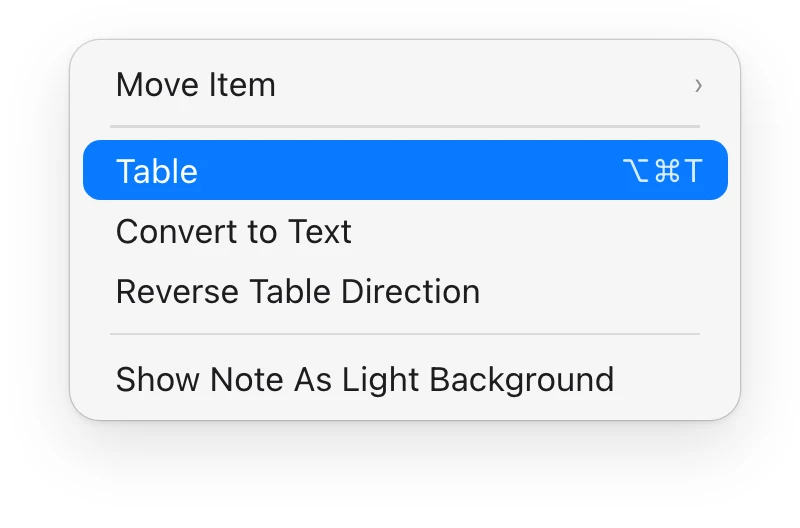
- On a Mac. Choose File, New Smart Folder. Set the first rule with its pop-up menus, add more rules with the plus button, and choose whether a note must match all of the rules or any of them.
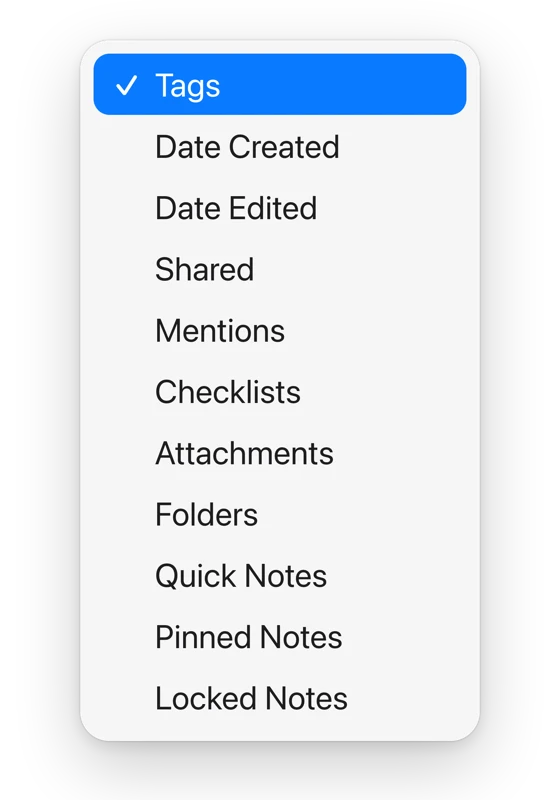
On macOS 26 a rule can filter by Tags, Date Created, Date Edited, Shared, Mentions, Checklists, Attachments, Folders, Quick Notes, Pinned Notes or Locked Notes. A Tags rule offers Any Tag, All Selected, Any Selected and Untagged Notes Only, and the last one is a quick way to find everything you never tagged. A date rule can be Today, Yesterday, a number of days, weeks, months or years back, or a specific range. Checklists can be Checked, Unchecked or No Checklists, which makes a Smart Folder of every list with unticked items easy to build.
A Smart Folder can't be locked, shared or put inside another folder, though it can list shared notes.
Tags or folders?
A note sits in one folder and can carry many tags. Apple's own tip in Notes says folders suit broad areas, like work or personal projects, and tags suit specific topics, like #Hiring or #Taxes. That holds up. A note about a client meeting goes in Work and gets #acme, and a Smart Folder for #acme then pulls in that client's notes from Work, Personal and anywhere else.
There's one real cost. Notes won't lock a note that has a tag, and won't add a tag to a locked note. If you lock notes, organize those by folder. What to do if you forgot your Apple Notes password covers how the lock itself works.
When tags don't work
The # stays plain text
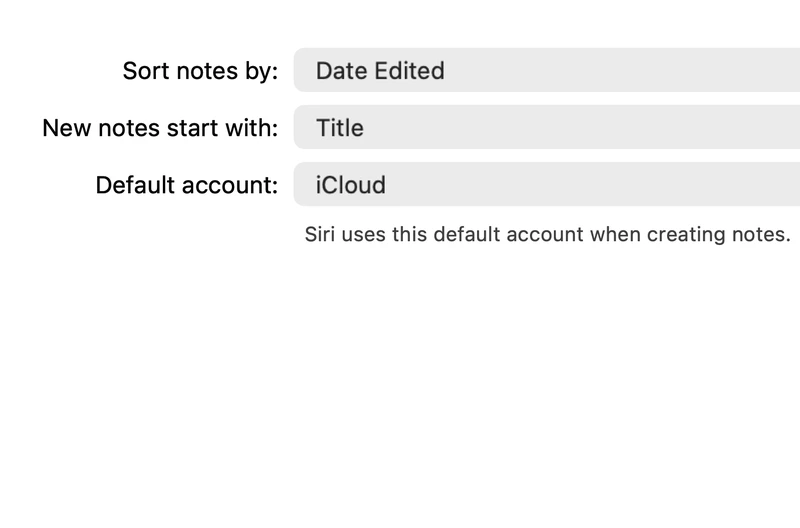
On iPhone, open Settings, tap Apps, then Notes, and check that Auto Convert to Tag is on. Then check the tag itself: a space ends it, so #tax return gives you the tag #tax and the plain word "return". Write #tax-return instead.
The note won't take a tag at all
Tags need iCloud. On a Mac, Notes says so outright when you try to tag a note in Gmail, another IMAP account or Exchange: tags aren't supported there. Move the note into an iCloud folder first, which how to move Apple Notes to iCloud walks through. A locked note refuses tags too, until you remove the lock.
Tags show up as plain text on another device
Tags show as tags on devices with iOS 14 or macOS Big Sur and later. On anything older, Apple says a tag may show as plain text. The same goes for people you share a tagged note with.
A tag vanished from the Tags browser
The browser only lists tags that some note still uses. Once the last note with a tag loses it, the tag disappears. Type it again in any note and it comes back.
A Smart Folder is empty, or shows the wrong notes
Open it with Edit Smart Folder (touch and hold it on iPhone, Control-click it on a Mac) and check whether it needs all of the rules or any of them. With all, every extra rule narrows the list. Also check the Tags rule: All Selected needs every chosen tag on the same note, and Any Selected needs one.
You can't move a note into a Smart Folder
That's by design. A Smart Folder holds no notes of its own, so Notes won't move a note into it: it only lists notes that match its rules. Add the tag the Smart Folder filters on and the note appears.
Convert to Smart Folder is refused
Notes can turn an ordinary folder into a Smart Folder. It won't if the folder is shared, holds a locked or shared note, or has subfolders. Read the warning before you convert: Notes moves every note in the folder into the Notes folder and tags each one with the folder's name, and that can't be undone.
Deleting a tag deleted a Smart Folder
If a Smart Folder filters on that tag alone, deleting the tag deletes the Smart Folder too. Notes lists them in the confirmation before it does, so read it. The notes stay put.
"This Smart Folder uses unsupported features"
A Smart Folder made on a newer version of Notes can use filters an older Mac doesn't know. Notes shows this message and asks you to update macOS to view or edit it.
Tag notes with Shortcuts
On macOS 26 the Shortcuts app has Notes actions named Add Tags to Notes, Remove Tags from Notes, Create Tag, Delete Tags and Open Tag. They're useful for tagging a batch of notes at once. Tags live in the notes themselves, so keep a copy of those too: how to export Apple Notes to Markdown covers one note or all of them.
If you want an assistant to do the sorting
Amber Notes, the notes app for iPhone and Mac that I make, has no tags or Smart Folders. It has folders, sub-folders, pins and search across every word, and you can connect ChatGPT or Claude to it after approving them on your device. Then the job a Smart Folder does, like "find every note about the kitchen renovation", becomes a request: the assistant searches your notes and lists them, or moves them into one folder. The Mac app is out now, and the iPhone app is coming soon to the App Store. Moving from Apple Notes takes one import on a Mac and leaves Apple Notes as it was.
Questions
Why won't my hashtag turn into a tag in Apple Notes?
Check four things. The tag has to be one word: letters, numbers, hyphens and underscores, with no spaces. The note has to be in iCloud, not in Gmail, another IMAP account or Exchange. The note can't be locked. And on iPhone, Auto Convert to Tag has to be on in Settings, Apps, Notes.
Can I put a note in a Smart Folder?
No. A Smart Folder only shows notes that match its rules, and the notes stay in their own folders. To get a note into a Smart Folder that filters by a tag, add that tag to the note.
Should I use tags or folders in Apple Notes?
Use both. Apple's own tip in Notes says folders suit broad areas like work or personal projects, and tags suit specific topics like #Hiring or #Taxes. One exception: a note with a tag can't be locked, so keep locked notes organized by folder.
Why did a Smart Folder disappear when I deleted a tag?
When a Smart Folder filters on that tag alone, deleting the tag deletes the Smart Folder too. Notes names the Smart Folders it will delete before you confirm. The notes themselves stay where they are.
Checked against the app on .